If you'd like to receive a copy of notifications/workflows sent to the school Dash account, you can have your personal teacher account configured as a sports coordinator and/or workflow delegate for a school.
If you do not yet have an approved teacher account, you'll need to create one.
To be assigned a role within the school, you will need to gain access to the school Dash account.
You can use the following link to gain access to a school account in any Dash instance, select your instance to be redirected:
https://www.dashapp.com.au/instances/?redirect_url=auth/login/school
In school accounts, it's possible to see a list of teachers that have a role at the school under the "Teachers" page, available in the left hand menu.
1. Adding a teacher role subscription to a teacher
This is done by clicking the three dots next to a teacher's name and clicking "School roles".
Ensure the teacher role subscriptions that the teacher should have are ticked, and click "Save".
The teacher role subscriptions should then show against the teacher.
2. Managing a subscription
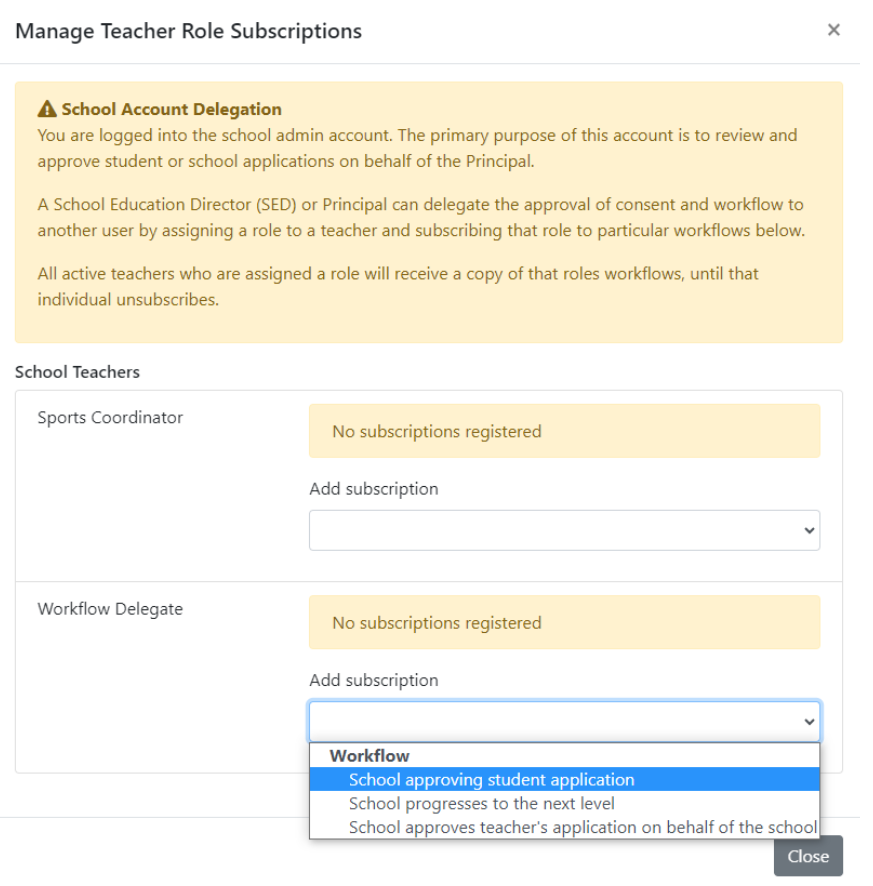
You can manage the workflow that a teacher role subscription receives. This is done by clicking the "Manage Subscriptions" button in the top right of the "Teachers" page.
Add the workflow that, for example, the "Sports Coordinator" should receive. You can see types of workflows below.
Types of Workflow
There are three types of workflow that a school receives which can be delegated to a teacher;
School approving student application
When a student's parent/guardian creates an application to attend an event, and that application contains a "School approval" step, the school is sent workflow to action the student's request to attend the event.
School progresses to the next level
When a school progresses from a regional level competition to the state level, they are asked to approve the progression.
School approves teacher's application on behalf of the school
Teachers can create competition entries on behalf of the school, and the school is then asked to approve these entries.
If you have any questions when setting up your account, please contact
support@dashapp.com.au